Abstract
This comprehensive technical reference provides system administrators and system programmers with detailed guidance for deploying and managing IBM Storage Scale storage clusters in environments orchestrated by NVIDIA Base Command Manager (BCM). The document addresses the unique integration challenges of combining BCM's image-based provisioning model with Storage Scale's cluster management requirements, offering production-ready implementation procedures for AI, HPC, and data-intensive computing environments.
Authors
Simon Lorenz and Gero Schmidt
Introduction and Technical Overview
This technical integration guide describes deploying and managing IBM® Storage Scale clusters in environments orchestrated by NVIDIA® Base Command Manager (BCM). It helps users new to IBM Storage Scale deployment provision, configure, and maintain IBM Storage Scale nodes using NVIDIA BCM's image-based provisioning system. Experienced users can review the main steps.
The guide also explains NVIDIA Base Command Manager features and their usage. This approach enables scalable, automated, and consistent deployment of IBM Storage Scale in AI, HPC, and data-intensive environments.
Installation and upgrade examples are based on NVIDIA Base Command Manager 11 (Ubuntu) and IBM Storage Scale releases 5.2.3 and 6.0.0. Installing IBM Storage Scale on RHEL nodes does not change the procedure. The main difference is that NVIDIA Base Command Manager provides a default Ubuntu image, while you must build the RHEL image. For more information, see Creating a new default image (RHEL Example). To configure and administer NVIDIA BCM, you can use cmsh (command-line interface) or Base View (graphical interface). This guide primarily uses cmsh examples.
Authors and Contributors
Author Simon Lorenz is a software development architect and team lead in IBM's IBM® Spectrum Scale organization, based in the Frankfurt Rhine-Main region of Germany, with more than three decades at IBM. During this time, he lived and worked in Singapore and the United States as part of short‑term international assignments. He focuses on storage for AI, big data, and analytics, including IBM® Spectrum Scale system health, cluster management, and GPU-accelerated AI data pipelines. He is also an IBM® Redbooks® Gold Author and co-author of multiple Redpapers on IBM® Spectrum Scale, unified file and object storage, and running AI workloads on Red Hat OpenShift with NVIDIA GPUs. In addition to numerous publications and blog articles, he has filed almost 20 granted patents, one of which was awarded the IBM Corporate Patent Portfolio Award. He is a frequent speaker at conferences and IBM® Spectrum Scale user group events.
Author Gero Schmidt is a software engineer in the IBM Spectrum Scale development organization at IBM Germany Research and Development GmbH, focusing on enterprise storage solutions and container-native storage for AI, big data and analytics. Since joining IBM in 2001, he has worked across technical presales, storage performance engineering, and storage research, including projects on IBM® Spectrum Scale, RDMA/RoCE performance, genomic data compression, and cloud-native backup for Kubernetes and Red Hat OpenShift. He is an IBM® Redbooks® Platinum Author covering topics on IBM® Spectrum Scale and accelerating AI data pipelines.
IBM Redbooks Project Leader Phillip Gerrard is a Project Leader for the International Technical Support Organization working out of Beaverton, Oregon. As part of IBM® for over 20 years he has authored and contributed to hundreds of technical documents published to IBM.com and worked directly with IBM's largest customers to implement storage solutions and resolve critical situations. As a team lead and Subject Matter Expert for the IBM Spectrum Protect support team, he is experienced in leading and growing international teams of talented IBMers, developing and implementing team processes, creating and delivering education. Phillip holds a degree in computer science and business administration from Oregon State University.
Notices
While IBM values the use of inclusive language, terms that are outside of IBM's direct influence are sometimes required for the sake of maintaining user understanding. As other industry leaders join IBM in embracing the use of inclusive language, IBM will continue to update the documentation to reflect those changes.
Understanding IBM Storage Scale and its Deployment Options
IBM Storage Scale, formerly known as GPFS (General Parallel File System), is a high-performance, software-defined parallel file system. It accelerates AI workloads, including training and inference, by eliminating data silos and providing a unified namespace from edge to core to cloud. It supports NVIDIA GPUDirect Storage for fast data ingestion and reduces GPU idle time.
IBM Storage Scale supports data sharing and management across cloud services, big data analytics, high-performance computing (HPC), and enterprise workloads. Its architecture delivers reliability, scalability, and performance. Features include Active File Management (AFM), disaster recovery, and support for multiple protocols such as NFS, SMB, and S3.
You can deploy IBM Storage Scale using two primary methods: the installation toolkit or manual package installation. This guide describes manual package installation on the software image, then uses the installation toolkit to create the Storage Scale cluster.
Understanding NVIDIA Base Command Manager Functions
NVIDIA Base Command Manager (BCM) is a cluster management platform that simplifies and optimizes high-performance computing (HPC), AI, and data science environments. It provides centralized control for provisioning, configuring, and monitoring GPU-accelerated clusters in both on-premises and cloud deployments. NVIDIA BCM integrates workload managers such as Slurm, PBS, and LSF, as well as Kubernetes for container orchestration, enabling efficient job scheduling and resource allocation across CPUs, GPUs, and containers. Its architecture supports multi-user, multi-tenant setups with security features such as role-based access, LDAP integration, and certificate-based authentication.
Key features include automated node provisioning using PXE/iPXE, image and package management for diverse Linux distributions, and advanced power management through PDU and IPMI interfaces. NVIDIA BCM offers a browser-based User Portal for monitoring workloads, nodes, and Kubernetes clusters, with accounting and reporting capabilities powered by Prometheus and PromQL. It integrates JupyterHub and JupyterLab for interactive development, supporting kernel provisioning for Slurm, PBS, and Kubernetes, and containerized environments using Enroot and Pyxis. Additional capabilities include GPU management with CUDA/OpenCL tools, Spark on Kubernetes, high availability through head-node failover, and extensibility through Python scripting and Ansible automation. NVIDIA BCM orchestrates complex AI/ML workflows, HPC simulations, and enterprise-scale data analytics.
Using NVIDIA Base Command Manager to provision, configure, and maintain IBM Storage Scale nodes
Combining IBM Storage Scale with NVIDIA Base Command Manager (BCM) creates a powerful synergy for AI, HPC, and data-intensive workloads and addresses the following key requirements:
- Unified Data Access and GPU Compute Orchestration: IBM Storage Scale provides a high-performance, POSIX-compliant file system that scales across thousands of nodes and offers global namespace access. NVIDIA BCM orchestrates GPU resources, workload managers (Slurm, PBS), and Kubernetes clusters. GPU-accelerated compute nodes can access and process large datasets stored in IBM Storage Scale efficiently and without bottlenecks.
- Integrated Workflow Management: IBM Storage Scale handles data lifecycle management, replication, and tiering (including cloud integration). NVIDIA BCM automates provisioning, scheduling, and monitoring of compute resources. This integration supports AI/ML pipelines from ingesting and storing petabytes of training data to running distributed training jobs and analytics at scale.
- Key Benefits:
- Performance: Parallel I/O from IBM Storage Scale with GPU acceleration from NVIDIA BCM
- Scalability: Horizontal scaling for large clusters
- Flexibility: Support for hybrid environments (on-premises and cloud), containers, and multi-tenant setups
- Integration: NVIDIA BCM's Jupyter, Spark, and Kubernetes capabilities with IBM Storage Scale's multi-workload data serving

Node Provisioning using Base Command Manager
Understanding Concepts of NVIDIA BCM provisioning
NVIDIA Base Command Manager (BCM) uses image provisioning to deploy and maintain cluster nodes. A software image acts as a blueprint for a node's operating system and configuration, stored as a directory on the head node. These images typically match the head node's OS, but multi-distribution and multi-architecture environments (for example, RHEL, Rocky, Ubuntu, x86_64, ARM) are supported. Nodes boot over the network using PXE or iPXE, receive the assigned image from the provisioning server, and overwrite the local filesystem during installation. This approach ensures consistency across nodes and lets administrators scale clusters by assigning images to categories or individual nodes. You can distribute provisioning roles for high-scalability and high-availability setups.
NVIDIA BCM provides image management capabilities including image locking and unlocking for updates, revision control using Btrfs (a copy-on-write filesystem) for versioning and rollback, and dynamic provisioning through Auto Scaler for cloud or on-premises environments. You can create or modify images using tools such as cm-create-image and cm-image, integrate package managers, and apply configuration overlays for flexible role assignments. You can apply updates without rebooting using imageupdate, and exclude lists provide fine-grained control over file synchronization. NVIDIA BCM's image provisioning system supports heterogeneous clusters and enables deployment, automated scaling, and lifecycle management of compute resources.
Deployment Planning and Considerations
Attention: NVIDIA BCM automates node provisioning, image synchronization, and updates using rsync-based operations, which by default can overwrite all files on a node. The excludelist specifies files, directories, or devices that must not be modified (such as IBM Storage Scale-managed storage paths, system-specific configurations, the GPL layer, or logs) to ensure operational integrity and compliance.
Without this safeguard, NVIDIA BCM can reformat disks or replace node-specific settings during image updates, causing service disruptions or data loss. Properly configured excludelists let NVIDIA BCM and IBM Storage Scale coexist while preserving persistent data and enabling automated cluster management at scale.
The IBM Storage Scale Deployment section provides details on properly configured excludelists and default software images for deployments and upgrades.
Understanding IBM Storage Scale Deployment Prerequisites
Locating Installation packages
The IBM Storage Scale software is delivered in a self-extracting archive. This self-extracting archive can be downloaded from Fix Central. Under "Software defined storage" as the Product Group and "IBM Storage Scale" as the Product. Select the appropriate version and platform.
Follow the guide on how to use the IBM Storage Scale package extract options.
For more information, see Extracting the IBM Storage Scale software on Linux nodes.
If you do not use the --dir option to specify an extraction directory, the default root path is /opt/IBM/<scale version>/. Find installation packages at /opt/IBM/<scale version>/gpfs_debs/ or /gpfs_rpms/. The installation toolkit command spectrumscale is located at /opt/IBM/<scale version>/ansible-toolkit.
To make packages available on all nodes, use the /cm/shared directory as described in NVIDIA BCM shared directory. Adjust the paths in the examples accordingly. Use the --dir option to specify a directory under /cm/shared/.
For more information, see Location of extracted packages.
The examples in this guide use the IBM Storage Scale Data Management Edition.
Understanding the IBM Storage Scale GPFS portability layer
The IBM Storage Scale portability layer is a loadable kernel module that enables the IBM Storage Scale daemon to interact with the operating system. Rebuild it when the kernel version changes or when you install a new IBM Storage Scale version.
For more information, see Building the GPFS portability layer on Linux nodes.
You can build the IBM Storage Scale portability layer in three ways:
- Execute the mmbuildgpl command manually
- Use the installation toolkit to build the GPL automatically
- Enable the autoBuildGPL configuration option to build the GPL during daemon startup
With autoBuildGPL enabled (option 3), you can update a BCM software image to a new kernel or select an alternative kernel without manually rebuilding the IBM Storage Scale GPL kernel module using mmbuildgpl after reboot. The autoBuildGPL feature eliminates the need to build the portability layer manually.
You must use one of these approaches:
- Install the GPL package (created using
mmbuildgpl --build-package ) on the image - Add the directories where the GPL package is installed to the exclude list
- Use the autoBuildGPL option to rebuild the GPL package after each node restart The deployment section example demonstrates using the autoBuildGPL option.
Comparing Vanilla IBM Storage Scale vs IBM Storage Scale Container Native Storage Access (CNSA)
IBM Storage Scale and IBM Storage Scale Container Native Storage Access (CNSA) differ in deployment model and container platform integration.
IBM Storage Scale deploys on bare-metal or VM environments for HPC, AI, and enterprise workloads. In environments without a container platform such as Kubernetes or OpenShift, IBM Storage Scale runs directly on the host operating system. High-Performance Computing (HPC) environments typically run a base operating system such as Ubuntu or Red Hat Enterprise Linux (RHEL) on a cluster of interconnected nodes that compute complex problems in parallel, scaled beyond single-node boundaries. Workload schedulers such as Slurm or IBM LSF manage workloads on these clusters. Install the IBM Storage Scale client cluster into BCM software images for compute nodes using OS-specific and platform-specific .deb or .rpm packages.
IBM Storage Scale CNSA is a containerized implementation for Kubernetes and Red Hat OpenShift that runs as pods within the container platform. CNSA integrates with the Container Storage Interface (CSI) to provide persistent volumes for containerized applications, supports remote or local file systems, and offers automated deployment using operators, dynamic provisioning, and cloud-native networking compatibility. CNSA suits modern hybrid cloud and containerized environments, while IBM Storage Scale suits traditional scale-out infrastructure. For GPU workloads running in containers orchestrated by NVIDIA Run:ai, IBM Storage Scale CNSA provides dynamic provisioning, optimized container data paths, and automated pod lifecycle handling (eviction, drain). Deploying IBM Storage Scale CNSA on container platforms such as OpenShift or Kubernetes uses a different process, which will be described in IBM Storage Scale Container Native. NOTE: This doccument will be updated at a later date with additional details regarding CNSA based deployment.
NVIDIA BCM configurations for managing IBM Storage Scale differ between IBM Storage Scale on dedicated compute nodes and IBM Storage Scale CNSA on a container platform such as Kubernetes. Use different exclude lists for the categories. For IBM Storage Scale CNSA, you do not add IBM Storage Scale software packages to the BCM software image because an operator deploys them directly on the container platform.
Provisioning Flow
The provisioning flow in NVIDIA Base Command Manager begins with PXE or iPXE boot. Nodes load a minimal environment over the network using DHCP and TFTP/HTTP. This triggers the nodeinstaller, a lightweight OS that contacts the head node, requests certificates, configures network interfaces, and determines the installation mode.
The nodeinstaller runs initialization scripts, checks and partitions disks, and synchronizes the operating system and configuration files from the designated software image using rsync. After synchronization, NVIDIA BCM applies updates to match the latest image state and respects excludelists to preserve critical data. The node boots from its local disk into the full operating system, transitions to an UP state, and is ready for workloads.
Using categories
Categories provide a scalable and efficient way to manage large clusters by organizing nodes, resources, and configurations. In NVIDIA Base Command Manager, categories let you apply settings, roles, and policies to groups of nodes instead of individual nodes, reducing repetitive tasks and ensuring consistency across similar hardware or functional roles. Categories enable bulk operations such as provisioning, updates, monitoring, and workload scheduling, and support hierarchical overrides for flexibility.. Categories simplify resource allocation, job scheduling, and reporting by grouping nodes based on characteristics such as GPU availability, memory size, or project assignment. This approach supports automation, reduces configuration errors, and improves visibility and control in administrative interfaces and workload managers such as Slurm or PBS.
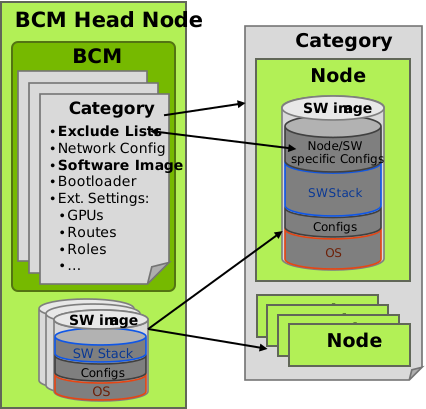
You can assign software images and exclude lists to categories. This approach simplifies configuring large sets of nodes to use the same image and configuration by assigning the nodes to a category. Typically, you clone a new category from an existing category that is configured for the target compute nodes with OS, network definitions, boot settings, and software configurations.
Depending on your environment complexity (for example, different excludelists), you may need to create a category for each hardware, software, and configuration combination. Using a new category and assigning nodes individually supports live cluster upgrades. This approach prevents unintended software image synchronization during unplanned node reboots. You can more easily perform downgrades if you retain earlier categories and their associated software images.
Reflect configurations in the category name. For example, include hardware and software groupings such as:
For more information, see Building the GPFS portability layer on Linux nodes.
Understanding NVIDIA BCM Software default images
A default image in NVIDIA BCM is a preconfigured software image (typically named default-image) stored on the head node. It serves as the baseline operating system and configuration for provisioning cluster nodes. The default image contains the Linux filesystem, kernel, drivers, and essential packages, ensuring consistent and reproducible environments across nodes. NVIDIA BCM automatically assigns the default image to uncategorized nodes. The default image supports automated deployment, updates, and recovery. It provides centralized control over node configurations, supports disked and diskless setups, and can be customized or versioned using tools such as cmsh, Base View, or Btrfs revision control. During node provisioning, the default image synchronizes to the node's local filesystem for for rapid initialization and uniform cluster initialization.
You can find a base tar image with the same Linux distribution as the head node on the installation media. For Ubuntu 24.04, the image is at
For more information, see Software images.
Building a default image for a from head node different linux distribution
The cm-create-image and cm-image tools manage software images in NVIDIA BCM that provision and maintain consistent environments across cluster nodes. Use cm-create-image to build a new image from scratch after major changes such as OS upgrades, kernel updates, or custom configurations. It creates a Linux filesystem snapshot that serves as the base for node provisioning.
Use cm-image to manage existing images: assign them to nodes or categories, update metadata, handle revisions (especially with Btrfs), or deploy updates. cm-image supports routine operations such as scaling, recovery, or rolling out minor changes. In heterogeneous clusters or multi-architecture setups, cm-image supports advanced workflows such as provisioning Ubuntu nodes from a Rocky Linux head node.
cm-create-image initiates the image lifecycle. cm-image handles its deployment and maintenance.
Creating a new default image (RHEL Example)
For more information, see Creating A Custom Software Image.
The following example shows how to create a RHEL default image, based on a RHEL 9.4.0 iso image. Ensure Node 1 has a RHEL package manager configured before creating the base tar. Further ensure, that firewall configuration is done as needed by IBM Storage Scale.
The example environment looks like:
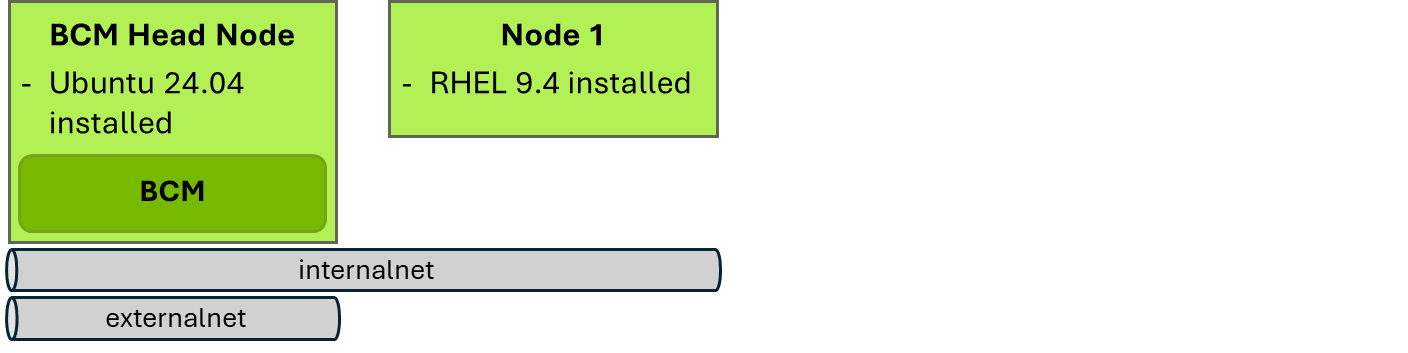
Flow graphically:
- Install RHEL on node 1.
- Create a base tar of node 1.
- Use created base tar for cm-image command.
Customizing Images
To customize the default image in NVIDIA BCM, you can modify the Linux filesystem at /cm/images/default-image on the head node. Edit the image using standard Linux tools such as chroot, rpm, yum, apt, or NVIDIA BCM utilities such as cm-create-image, cm-image, and cm-chroot-sw-img. Customizations include installing or removing packages, editing configuration files, adding scripts, and updating kernel modules.
Propagate changes to nodes using the imageupdate command or Base View GUI. Dry runs and exclusion lists control which files synchronize. Btrfs provides revision control for versioning, rollback, and assigning specific revisions to node categories.
Additional customization options include PXE boot menu edits, container image integration (for example, Enroot, Pyxis), role and overlay assignments, and advanced hardware settings such as BIOS, BMC, and kernel parameters. These features ensure that the default image can be adapted to the different deployment requirements for disked, diskless, edge and cloud nodes.
Comparing cm-chroot-sw-img vs grab-image option
cm-chroot-sw-img and grab-image differ in reliability and recommended usage for managing software images.
Use cm-chroot-sw-img to create and customize software images in a controlled chroot environment. You can install packages, configure settings, and maintain consistency across cluster nodes. It integrates with NVIDIA BCM's provisioning workflows and revision control.
grab-image captures the filesystem of a running node and copies it into an image. This approach can include transient files, misconfigurations, or corrupted data from the live system. It lacks integration with NVIDIA BCM's image management tools.
Use cm-chroot-sw-img for all image creation and updates. Use grab-image only for emergency recovery or legacy scenarios.
This guide uses cm-chroot-sw-img.
For more information, see Installing From Head Into The Image: Changing The Root Directory Into Which The Packages Are Deployed and Synchronizing The Local Drive With The Software Image.
Locking/Unlocking software images
The BCM provides the ability to lock and unlock software images.
For more information, see Synchronizing The Local Drive With The Software Image.
Locking a software image in BCM prevents any node from picking up changes or synchronizing with that image during provisioning or image-update operations. When an image is locked, provisioning requests are deferred, and running nodes cannot re‑sync to the updated image until it is unlocked.
Unlocking the software image restores normal behaviour, allowing nodes to provision, update, or sync against that image again. The lock state is tracked by an islocked property and can be changed using cmsh and Base View.
Locking is recommended when administrators want to perform maintenance or upgrades on the software image without nodes inadvertently syncing or updating.
Example
Handling Different OS/Arch Versions of a NVIDIA BCM in Relation to the Nodes
Important: When the head node runs a different Linux distribution than the managed nodes (for example, Ubuntu on the head node and RHEL on the managed nodes), compatibility issues can occur when using tools such as cm-chroot-sw-img to create software images. This tool uses the head node's environment to build the image, including its kernel and system libraries. If the head node's distribution differs from the managed nodes, the resulting image can include incompatible kernel modules or system binaries. For example, an Ubuntu-based head node uses its own kernel during image creation, which may not support RHEL-specific drivers or configurations required by managed nodes. This mismatch can cause unstable behavior, failed deployments, or non-functional nodes. Ensure the head node's distribution matches the target distribution of the managed nodes when using cm-chroot-sw-img to avoid kernel and system-level incompatibilities.
This requirement is important when building the IBM Storage Scale portability layer on Linux nodes.
For more information, see Installing From Head Into The Image: Possible Issues When Using rpm --root, yum --installroot Or chroot.
Understanding Different types of excludelists
Important: NVIDIA Base Command Manager uses several excludelist types for different provisioning and update scenarios: excludelistfullinstall for full image installs, excludelistsyncinstall for incremental syncs, excludelistupdate for live node updates, and excludelistgrab/excludelistgrabnew for image capture operations. These lists define files, directories, or mount points to skip during automated processes, ensuring critical system data, logs, and dynamic filesystems are not overwritten. excludelistmanipulatescript adds flexibility by dynamically modifying these lists at runtime based on context (such as sync mode or destination path). This scripting capability supports complex environments where static lists cannot cover all operational requirements.
This guide focuses on excludelistsyncinstall (applied during node reboot) and excludelistupdate (applied during online node updates).
Understanding NVIDIA BCM shared directory
The /cm/shared directory in an NVIDIA Base Command Manager (BCM) cluster is a central shared filesystem:
The head node NFS-exports it and mounts it on all cluster nodes (compute, head, cloud, virtual). It provides a common location for cluster-wide resources, ensuring consistency and simplifying management. This guide uses the /cm/shared directory to deploy IBM Storage Scale software packages.
Understanding Different NVIDIA BCM configuration interfaces
cmsh offers a structured, scriptable CLI environment ideal for
advanced users, automation, and bulk operations. It provides granular
control over all configuration attributes, supports batch changes, and
integrates well with external tools and remote execution workflows.
Review NVIDIA BCM command options when using the examples below to ensure
the best options are used for your case. To better understand the various
cmsh commands used, the examples use the cmsh client mode. For
scripting, commands can also be provided in the form of:
For more information, see Invoking cmsh.
Base View is a GUI-based interface designed for intuitive, visual management. It simplifies routine tasks through guided wizards, dashboards, and context-sensitive help, making it suitable for onboarding, monitoring, and ad-hoc configuration by users who are new to the system or prefer a visual approach.
While Base View and cmsh both modify the same backend configuration and support the full BCM feature set, the choice depends on an administrator's expertise, the complexity of the task, and whether automation or usability is the priority.
This guide primarily provides examples for cmsh usage.
Deploying IBM Storage Scale
This chapter describes how to deploy and upgrade IBM Storage Scale on a set of compute nodes managed by NVIDIA Base Command Manager (BCM). In this approach, IBM Storage Scale software is directly installed into the regular BCM software images for the compute nodes using OS- and platform-specific .deb or .rpm packages.
The steps described in the following sections fully align with the standard NVIDIA BCM workflows for managing BCM software images and categories for a given set of compute nodes. Administrators familiar with these standard BCM workflows will be able to quickly manage IBM Storage Scale on compute nodes with the same ease of use and user experience.
Deploying IBM Storage Scale on Compute Nodes
This section describes how to deploy IBM Storage Scale on a set of compute nodes managed by NVIDIA Base Command Manager (BCM). This makes IBM Storage Scale file systems from an IBM Storage Scale System, like an IBM Storage Scale System 6000, available on an NVIDIA DGX compute cluster.
The following example installs and provisions a 3 compute node and Ubuntu based IBM Storage Scale cluster, here also referred to as a storage client cluster, with release 5.2.3.5. For information on upgrading to 6.0.0.2, see Upgrading IBM Storage Scale.
The example environment for the manual installation looks like:

The steps to provision IBM Storage Scale on a set of compute nodes, are straight forward and fully align with the standard user experience and workflows for managing compute nodes with NVIDIA BCM using BCM software images and categories:
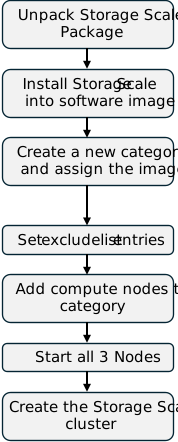
-
Unpack the IBM Storage Scale software package into the shared directory /cm/shared/scale/5.x.y.z (NFS share on NVIDIA BCM head node, shared on all nodes in BCM environment)
-
Install the IBM Storage Scale software packages into a regular BCM software image
-
Create a new BCM category for the compute nodes running IBM Storage Scale
- Add the BCM software image with IBM Storage Scale to the new category
- Add specific entries for IBM Storage Scale to the category's exclude lists
- Add the compute nodes to the new category
-
Run the regular BCM deployment on the compute nodes in the BCM category
-
Create the IBM Storage Scale cluster
- Log on to one of the newly provisioned compute nodes of the category
- Run the IBM Storage Scale installer in /cm/shared/scale/5.x.y.z/ansible-toolkit/
- Verify the IBM Storage Scale cluster is running
- Enable autoBuildGPL option
- Initialize admin user for IBM® Spectrum Scale® GUI
- Reboot all nodes
Unpacking the IBM Storage Scale Package
Create a new directory named "scale" for IBM Storage Scale packages on the BCM in the /cm/shared directory with a subdirectory named after the specific IBM Storage Scale package release version, for example 5.2.3.4. This new directory will be available on all BCM managed nodes as a mounted NFS share.
Unpack the IBM Storage Scale package into this newly created directory:
The following package folders will be installed in the directory including the IBM Storage Scale installer (ansible-toolkit):
Installing IBM Storage Scale into the Software Image
First, create a new software image "ub24-scale5325-image" that will later include the IBM Storage Scale v5.2.3.5 packages. Clone this image from an existing software image for the operating system used in your NVIDIA BCM environment, such as the "default" image included with the BCM release.
Before proceeding, please wait until the initial ramdisk for the new image was created successfully.
NVIDIA BCM also manages the ssh keys for the root user in the new software image:
These ssh keys will allow password-less access among the nodes for the root account which is managed by BCM. Password-less access across management nodes is also a prerequisite for IBM Storage Scale.
The next step is to install the IBM Storage Scale packages into this new software image.
We use the cm-chroot-sw-img command on the BCM to switch into the newly created software image:
Then we mount the previously created "/cm/shared/scale" directory into our chroot-environment:
Now we have all the IBM Storage Scale packages available for installation in our chroot environment. We follow the IBM Storage Scale instructions at Manually installing the IBM Storage Scale software packages on Linux nodes to install the packages dependent on the base operating system, for example, Ubuntu or Red Hat Enterprise Linux. Make sure that also the Software requirements are satisfied and that all the required packages are available in the base software image.
Note: Kernel development files and compiler utilities are required to build the GPFS portability layer on Linux nodes. For more information, see mmbuildgpl command.
Ubuntu Example (Installing)
On Ubuntu the following steps are executed to add the standard IBM Storage Scale packages to the selected software image including some of the required prerequisite software packages. The prerequisite packages depend on your configuration and features that you want to deploy. Note that the IBM Storage Scale mmbuildgpl command and autoBuildGPL feature require the kernel headers and modules for each kernel to be installed (i.e. linux-image, linux-headers, linux-modules, linux-modules-extra).
In this example, we first install the following prerequisite software packages on Ubuntu in the change-root environment:
- linux-generic
- ksh
- ansible-core
- cpp
- gcc
- g++
- binutils
- libelf-dev
- numactl
- sqlite3
- libssl-dev
- libsasl2-dev
- iputils-arping
with:
Then we install all standard IBM Storage Scale packages including the Storage Scale GUI and performance sensors / collectors in the software image. The GUI and collector packages are not generally required on every node but help to provide a uniform software image for all the nodes of the IBM Storage Scale client cluster. The activation of these services can later be managed individually on a per node basis.
In the example below, we install a standard selection of the IBM Storage Scale base packages into the software image using the chroot environment. Use the cd command to switch into the directory "/mnt/scale/5.2.3.5" of the chroot environment which we mounted earlier from the BCM head node through the NFS share /cm/shared/:
Then install the IBM Storage Scale packages into the BCM software image as follows:
After a successful execution of the above command the following IBM Storage Scale packages were installed in the software image:
Leave the /cm/shared directory (for example, by running the command cd), unmount the shared /cm/shared directory and exit from the chroot-environment:
Further Software Image Customizations
Extending the PATH variable for root user
Extend the default PATH variable in /root/.bashrc of the software image to include the new IBM Storage Scale binaries in the system path for root:
Adding IBM Storage Cluster Host Names to /etc/hosts (optional)
If the hostnames of the remote IBM Storage Scale system (for example, IBM Storage Scale System 6000) cannot be properly resolved by the compute nodes on the BCM network, add them to the /etc/hosts file in the software image. These entries will be applied to all compute nodes deployed from this image, ensuring that the system's hostnames and IP addresses are always properly resolved. Proper name resolution is essential for remote mounting of the Storage Scale file systems to work.
You can add the entries of the nodes of the IBM Storage Scale System to the /etc/hosts file of the software image "ub24-scale5235-image" on the BCM head node as follows:
Note: You can apply this change directly to the software image without the need to run a chroot environment.
Creating a new Category for the IBM Storage Scale Cluster
Create a new BCM category for the compute nodes where you want to install the IBM Storage Scale client cluster. Typically, you would clone this category from an existing category that already was adapted accordingly for the target compute nodes with regard to OS, network definitions and boot configurations.
Here we create a new category named "ub24-scale-sr645v3" from the existing category "ub24-sr645v3" that already proved to be working for the target nodes to install the selected operating system:
We use the new category for the newly created software image and extend the exclude lists with specific entries for IBM Storage Scale to allow initial deployments and upgrades while maintaining the storage client cluster configuration.
Adding the Software Image to the new Category
Add the newly created software image with the IBM Storage Scale software to the new category:
Adding IBM Storage Scale Entries to Exclude Lists
Add the following list of specific IBM Storage Scale entries to the category's exclude lists for sync install and update:
The easiest way to edit the exclude lists of a category is using Base View - the BCM GUI.
IMPORTANT: Here, the first entry in the exclude list above is the parent directory under which you want to mount all the IBM Storage Scale file systems. In this example, we use /gpfs as the parent directory to host all mounted IBM Storage Scale file systems. The parent directory can be freely chosen (for example /ibm) but it is highly recommended to exclude the directory explicitly in the category's exclude list.
With the command line tool cmsh the category's exclude lists for sync install and update with the above additions should look as follows.
Exclude list: sync install
Exclude list: update
Adding IBM Storage Scale Cluster Nodes to Category
Now add the target nodes to the above category:
The compute nodes will comprise the IBM Storage Scale client cluster which we later refer to as storage client cluster in this documentation.
Installing Nodes
Install all nodes in the category with the new software image. Ensure to do a FULL install.
Repeat the following for all nodes:
and reboot all nodes, for example
The BCM BaseView can also be used to achieve this step by selecting "Software Image -> Reinstall Node" for the category "ub24-scale-sr645v3" in BaseView:


All nodes will be rebooted (or power cycled) and reinstalled with the new software image that contains the IBM Storage Scale software packages.
Wait until all nodes are UP again:
We see that all nodes are up and have the IBM Storage Scale packages pre-installed:
Each node has 15 IBM Storage Scale software packages (*gpfs.**) installed.
Creating IBM Storage Scale Compute Cluster
Once all the nodes are deployed, we can pick the first node "c91f02knode01" to run the IBM Storage Scale installer and create the IBM Storage Scale compute cluster that later mounts the file systems from the IBM Storage Scale System. We will also use this node to run the IBM Storage Scale GUI for the compute cluster.
We log on to the node and initiate the IBM Storage Scale installer which is available in the shared /cm/shared directory under " /cm/shared/scale/5.2.3.5/ansible-toolkit/":
The IBM Storage Scale cluster creation follows the general steps documented at Using the installation toolkit to perform installation tasks: Explanations and examples. Please also refer to the quick overview chart of the installation toolkit for a brief summary of options.
The cluster creation is started by setting node "c91f02knode01" (192.168.91.47) as installer node with
Then we configure the IBM Storage Scale cluster following the regular steps in the documentation. This involves defining storage client cluster topology, i.e. adding the nodes and their roles, for example:
followed by the cluster configuration, for example:
You can enable the IBM Storage Scale call home feature by providing your IBM customer information as follows:
Alternatively, you can disable call home with the following command:
See [https://www.ibm.com/docs/en/storage-scale/5.2.3?topic=configuring-call-home](Configuring call home) for more details.
The node roles (or node designations), commands and options may vary depending on the local environment and required features.
As we mount the file system from the IBM Storage Scale System, we do not need to configure NSD (Network Shared Disks) devices or file systems at this stage.
Your created cluster definition for the storage client cluster can be found (and reused) in a file called "scale_clusterdefinition.json" in the NFS shared directory "/cm/shared" at:
The storage client cluster can then be deployed with the following commands:
The first command with the option "-pr" runs a pre-check of the environment while the second command deploys the entire cluster.
Checking the IBM Storage Scale cluster
Now you can check out and quickly verify your newly create storage client cluster.
Display the storage client cluster topology with the mmlscluster command:
Display the storage client cluster configuration with the mmlsconfig command:
The state of the storage client cluster daemons on all participating nodes can be checked with mmgetstate -a:
We see that the storage client cluster is created and its cluster daemons are running on all nodes.
Finally, check that the cluster network communication among all participating nodes in the storage client cluster is working fine:
Enabling autoBuildGPL option
To allow to have the IBM Storage Scale kernel module built automatically we enable the autoBuildGPL feature with
The kernel module will only be built once whenever the kernel or IBM Storage Scale release version was changed in the BCM software image and the node reboots for the first time.
The GPFS portability layer is a loadable kernel module that allows the GPFS daemon to interact with the operating system. It needs to be rebuilt whenever the kernel version is changed, or a new Scale version is installed. Building the GPFS portability layer manually with the mmbuildgpl command becomes obsolete with enabling the autoBuildGPL feature.
On Ubuntu you can see that the autoBuildGPL feature was triggered automatically during node reboot by taking a look at /var/logs/syslog:
Should the automatic build ever fail and the IBM Storage Scale daemon (mmfsd) does not start after a reboot (for example if you see an error message like "Error: daemon and kernel extension do not match." in /var/adm/ras/mmfs.log.latest) then you can always run the mmbuildgpl command manually on the node after reboot. This only would need to be done once when either the kernel or the IBM Storage Scale release changed.
For more information, see Using the mmbuildgpl command to build the GPFS portability layer on Linux nodes.
With the autoBuildGPL feature enabled you can update your BCM software image to a new kernel or just simply select an alternative kernel for the software image directly in BCM Base View as shown in the example below without the need to manually rebuild the IBM Storage Scale GPL kernel module with mmbuildgpl command on the nodes after a reboot.

Configuring the GUI User on selected GUI node
In this example we also configured the IBM Storage Scale GUI on one selected node, here the node "c91f02knode01" that we used to initiate the storage client cluster deployment. The IBM Storage Scale GUI is optional and not required on the storage client cluster. It is recommended for ease of administration. It is enabled by the installer and started as a systemd service:
We need to create the initial admin user for the IBM Storage Scale GUI by running the following command:
In this example the admin user is named "admin" and can login to the IBM Storage Scale GUI for this storage client cluster at https://c91f02knode01:443 or https://192.168.91.47:443.
Rebooting all nodes
After the initial cluster creation and verification, reboot all nodes
in the storage client cluster to ensure that BCM is properly configured
(specifically, the
Shutdown the IBM Storage Scale cluster with
and reboot all nodes, for example
Adding File System from IBM Storage Scale System
Now we can mount the remote file system from the IBM Storage Scale System, for example IBM Storage Scale System 6000, to our compute cluster by following the steps documented at Mounting a remote GPFS file system.
A quick summary of the steps is as follows. Make sure all nodes including the remote IBM Storage Scale System nodes are properly resolved (DNS, FQDN).
On one of the compute cluster nodes run the following commands to exchange the storage client cluster keys:
Grant access to the compute cluster "scale.cm.cluster" on the IBM Storage Scale System for file system "ess6k03fs1":
Add the remote IBM Storage Scale cluster and file system to the storage client cluster on the compute nodes. Run the following commands on one of the compute nodes:
You can list the remote mounted IBM Storage Scale Systems clusters and file systems with:
You can mount the file system on your compute cluster with:
It is now accessible on all compute nodes in this cluster at the selected mount point /gpfs/ess6k03fs1.
You can configure the file system to be automatically mounted on reboots with the start of IBM Storage Scale daemon using the -A yes option:
Upgrading IBM Storage Scale
This chapter describes how to upgrade an IBM Storage Scale cluster on the compute nodes which was deployed following the steps in IBM Storage Scale Deployment on Compute Nodes.
The following example upgrades the 3 node compute cluster, from version 5.2.3.5 to version 6.0.0.2.
The example environment for the manual upgrade looks like:

The steps to upgrade an existing IBM Storage Scale cluster on a set of compute nodes can be achieved in the same way as a BCM admin user would generally upgrade an existing BCM software image and push this updated software image to the selected set of compute nodes. These steps fully align with the standard BCM workflows for updating BCM software images and managing BCM categories for a given set of compute nodes.

-
Unpack the new IBM Storage Scale software package into the shared /cm/shared/scale/6.x.y.z directory (NFS share on NVIDIA BCM head node)
-
Update the IBM Storage Scale software packages in a cloned BCM software image
-
Switch to the updated software image in the BCM category for the compute nodes
-
Update the compute nodes IBM Storage Scale client cluster
- Option A: (online update): Shutdown and reboot one node of at a time
- Option B: (offline update): Shutdown the entire cluster and reboot all nodes
Unpacking the new IBM Storage Scale Package
Create a new subdirectory for the new IBM Storage Scale package on the BCM in the /cm/shared/scale directory with a subdirectory named after the specific IBM Storage Scale package release version, for example 6.0.0.2. This new directory will be available on all BCM managed nodes as a mounted NFS share.
Unpack the new IBM Storage Scale package into this newly created directory:
The following IBM Storage Scale folders will be installed in the /cm/shared/scale/6.0.0.2 directory:
Updating IBM Storage Scale in cloned Software Image
Create a cloned BCM software image "ub24-scale6002-image" from your existing image "ub24-scale5235-image" with the previous IBM Storage Scale version. Use the cloned image for the update and leave the original untouched. This allows you to revert to the proven configuration if anything goes wrong with the new image.
Before proceeding, please wait until the initial ramdisk for the new image was created successfully.
Wait for the message: "was generated successfully". It created a new directory: /cm/images/ub24-scale6002-image/
The next step is to install the new IBM Storage Scale packages into this cloned software image.
We use cm-chroot-sw-img command on the BCM to switch into the cloned software image:
Then we mount the "/cm/shared" directory of the BCM using NFS into our chroot environment:
All new IBM Storage Scale packages are now available for installation in the chroot environment. For general upgrade instructions, see Upgrading IBM Storage Scale nodes.
When upgrading a BCM software image, you do not need to follow many of the steps outlined in the documentation because you are not working on a running system with a mounted file system or active services. Simply update the installed packages in the BCM software image with the packages from the new release.
The update process depends on the base operating system, for example, Ubuntu or Red Hat Enterprise Linux. Also check the prerequisite requirements at IBM Storage Scale software requirements and verify that they are still satisfied for the new release and that the required packages are available in the base software image.
When updating the base OS distribution, ensure that kernel development files and compiler utilities are also installed, as these are required to build the GPFS portability layer (formerly GPFS) on Linux nodes. See the mmbuildgpl / autoBuildGPL option in the IBM documentation for more details.
Ubuntu Example (Updating)
On Ubuntu the following steps can be used to update the standard IBM Storage Scale software packages that are already installed in the cloned BCM software image.
If you also updated the kernel in the BCM software image make sure that you always also install the kernel headers and modules for each kernel (i.e. linux-image, linux-headers, linux-modules, linux-modules-extra) as these are required by IBM Storage Scale and its mmbuildgpl command and the autoBuildGPL feature to build the IBM Storage Scale GPL kernel module.
Provided that the cloned software image already contains all the required prerequisite software packages on Ubuntu we just need to upgrade the IBM Storage Scale packages.
In the example below we update a standard selection of the IBM Storage Scale base packages in the cloned BCM software image using the chroot environment. Use the cd command to switch into the directory "/mnt/scale/6.0.0.2" of the chroot environment which we mounted earlier from the BCM head node through the NFS share /cm/shared/:
Then upgrade the IBM Storage Scale packages in the BCM software image as follows:
You can also run
After a successful execution of the above command the following updated IBM Storage Scale packages should be installed in the software image:
Verify that all installed IBM Storage Scale gpfs packages (except gpfs.gskit) show the new release version, in this example 6.0.0.2.
Leave the /cm/shared directory (for example by running the command cd), unmount the shared /cm/shared directory and exit from the chroot-environment:
Switching to new Software Image in BCM Category
This example reuses the existing category "ub24-scale-sr645v3" and changes the software image assignment to the new image. Carefully consider the software image lock functionality to prevent automated pickup of a new image during an unplanned reboot of a node.
Depending on the complexity of your environment (for example, when using different exclude lists), you may want to create a new category for new hardware and software combinations.
Note: When you are ready to perform the update, after changing the software image in a BCM category, any unplanned reboot of a compute node in that category will automatically pick up the new image. Plan a maintenance window to update the cluster in a controlled fashion.
To proceed, edit the BCM category for the compute nodes running the IBM Storage Scale client cluster. Change the software image assignment to the previously updated image with the new release.
Note: Any unplanned reboot on any compute node in this category will automatically pick up the new software image. Carefully plan your upgrade steps and maintenance window.
Upgrading the IBM Storage Scale Compute Cluster
Now we are ready to update the IBM Storage Scale compute cluster. We have two options for upgrading the compute nodes in the IBM Storage Scale client cluster:
- Online update: Shutdown and reboot one node of at a time
- Offline update: Shutdown the entire cluster and reboot all nodes
Make sure that you carefully plan your upgrade steps and use a scheduled maintenance window for these steps.
Carefully consider the software image lock functionality to prevent automate pick up of a new software image during an unplanned reboot of node.
For information about supported kernel releases and upgrade paths, see:
- What is supported on IBM Storage Scale for AIX, Linux, and Windows?
- Can different IBM Storage Scale maintenance levels coexist?
- IBM Storage Scale Overview
Online update: Shutdown and reboot one node at a time
Upgrading the cluster in an online fashion means upgrading and rebooting one node at a time while the rest of the compute nodes and the file systems remain online.
To upgrade each node, log in to the compute node, shut down the IBM Storage Scale daemon, and unmount the file systems before rebooting. Ensure that all workloads on the node are halted and the file systems are no longer in use.
Shut down the IBM Storage Scale daemon on the compute node. This will also unmount any file systems:
Now you can reboot the compute node to pick up the updates from the BCM software image:
When the compute node is back online check that the IBM Storage Scale damon is up and running and that the IBM Storage Scale file systems are mounted:
In addition, you can also run the mmhealth command to check if there are any other issues reported in the storage cluster:
Note: The mmhealth command may need a couple of minutes before showing the latest system state.
To ensure latest state, use
Once the node is back online you must check the state of the IBM Storage Scale client cluster and file systems before you allow workloads to continue on this node and move on to the next compute node to proceed with the update! You must also check the consistency of the updated IBM Storage Scale packages on the node before deeming the update successful as some configuration files that changed with the new IBM Storage Scale release in the BCM software image may not have been copied over to the node automatically due to the exclude lists that are in place to protect these. For this mandatory step, see Check IBM Storage Scale Package Consistency.
If everything on the updated compute node looks healthy and the node successfully rejoined the IBM Storage Scale cluster then you can continue your workloads on this node and move on to the next compute node for the update.
Offline update: Shutdown the entire cluster and reboot all nodes
Upgrading the cluster in an offline fashion means we would upgrade and reboot all nodes while we shut down the entire cluster of the compute nodes and take the IBM Storage Scale storage client cluster and file systems offline (for example shutdown the IBM Storage Scale daemons and unmount the entire file system on the compute nodes). This is the fastest method for the upgrade.
Make sure the IBM Storage Scale file systems are no longer in use on the compute cluster. Then shutdown the IBM Storage Scale daemon on the compute cluster. This will also unmount any mounted IBM Storage Scale file systems.
Now you can reboot all compute nodes of in the IBM Storage Scale cluster with the BCM:
Once all the nodes are back online you must check the state of the IBM Storage Scale client cluster and file systems before any workloads are going to be scheduled on the compute cluster.
Log on to one of the compute nodes of the IBM Storage Scale cluster and run the following commands to determine the health of the IBM Storage Scale client cluster.
Check that the IBM Storage Scale cluster is defined and that all the IBM Storage Scale daemons are showing an active state:
Then check that the IBM Storage Scale files systems are mounted on all compute nodes:
On the selected compute node where the IBM Storage Scale GUI was configured to be running check that the following services are up and running:
Finally, you can also run the mmhealth command to check if there are any other issues reported in the storage cluster:
The mmhealth command may need a couple of minutes before showing the latest system state.
To ensure latest state, use mmhealth node show --refresh and --resync options as explained at mmhealth command.
You must also check the consistency of the updated IBM Storage Scale packages on the nodes before deeming the update successful as some configuration files that changed with the new IBM Storage Scale release in the BCM software image may not have been copied over to the node images automatically due to the exclude lists that are in place to protect these.
If everything on the updated compute nodes looks healthy and all the nodes successfully rejoined the IBM Storage Scale cluster, then you can continue your workloads on this compute cluster.
Checking IBM Storage Scale Package Consistency
In addition to the IBM Storage Scale services, verify the consistency of the packages on updated nodes. Some configuration files that changed with the new release in the BCM software image may not have been copied to the node automatically based on the exclude lists. This is intentional behavior to prevent overwriting manually applied changes to configuration files without the administrator's consent.
Depending on the OS (for example, Ubuntu with .deb packages or Red Hat Enterprise Linux with .rpm packages), you can check the installed files on the node against the system's software package database using either the dpkg -V command (Ubuntu) or the rpm -V command (RHEL). This prints one line per file that fails at least one verification check, using a 9-character status code.
The following example shows these steps on an Ubuntu system. Run this command on one of the updated compute nodes to verify package consistency:
A similar command on a Red Hat Enterprise Linux (RHEL) system would be:
In the example above we see that no files of the new IBM Storage Scale software release are missing and that only some files fail the md5 checksum ("5" in 3rd character) which means they differ from the version provided by the software package. Check this list carefully, especially for files in /var/mmfs to determine if the package update for the new IBM Storage Scale was successfully synchronized from the BCM software image to the actual node image as it passes the exclude lists on any BCM initiated update or sync on reboot.
Some of the files shown in the example above can safely be ignored as they are intended to be modified either by the applied cluster configuration or during runtime like, for example, the ZIMonCollector.cfg, the ICCSIG.txt files and the other four files listed in the gpfs.gui package section.
However, in this example with an update from IBM Storage Scale release version 5.2.3.5 to 6.0.0.2 we see that the following two configuration files were not automatically updated:
If you compare the BCM software images on the BCM head node you see that these default configuration files indeed changed from IBM Storage Scale release version 5.2.3.5 to 6.0.0.2
If you had not further customized these files manually in your current compute cluster you should update these configuration files on your nodes to the new default configuration files which came with the new IBM Storage Scale release.
The update of these files on the next synchronization with the BCM software image can be achieved simply by removing these files and moving them to a backup version on the compute nodes after you stopped the IBM Storage Scale service on the node (mmshutdown):
As these files are "removed" and thus "missing" on the node image they will automatically be restored from the default version in the BCM software image on the next image update or sync on reboot.
Now reboot the node (or run an image update on the node using the BCM) and you will have the latest version from the BCM software image deployed to the compute node after the reboot:
You can also run these commands on multiple nodes in the compute cluster in parallel using either pdsh -w node1,node2 "cmd" on the BCM head node or mmdsh -N all|[node1,node2] "cmd" on one of the compute nodes.
Brief Troubleshooting Guide for IBM Storage Scale
The examples above assume that the IBM Storage Scale daemons are configured to start automatically on a node reboot (option: autoload yes) and that all IBM Storage Scale file systems are automatically mounted (option -A yes).
In case you encounter any issues after the upgrade to the new software image you can do the following steps to manually start the IBM Storage Scale daemons and mount the file systems.
Start the IBM Storage Scale daemon(s) with mmstartup:
The option -a starts the IBM Storage Scale daemon on all nodes in the storage client cluster.
If you encounter an error and the daemons do not start, take a look at the IBM Storage Scale log at /var/adm/ras/mmfs.log.latest. If you see, for example, messages like
then the autoBuildGPL of the IBM Storage Scale kernel module may have failed.
In this case you can try to build the IBM Storage Scale kernel module manually with the mmbuildgpl command:
This will either succeed or give more details why the IBM Storage Scale kernel module could not be built with the new software image. If this step succeeds, then it would need to be done only once on each node in the storage client cluster. A new IBM Storage Scale kernel module needs to be built only once when either the kernel or the IBM Storage Scale release changes.
After successfully building the kernel module manually you can start the damons with mmstartup -a and check the state with mmgetstate -a.
Should IBM Storage Scale file systems not be mounted on your compute nodes you can mount them manually with mmmount [fs-name | all] -a:
Note Should you encounter serious issues after an upgrade you can always revert to the previous BCM software image with the previous "last good" IBM Storage Scale release that was working properly.
Glossary of Acronyms
Storage Technologies
AFM - Active File Management
IBM Storage Scale feature that enables automated data movement and caching between file systems, supporting disaster recovery and multi-site data management.
Context: Used for data replication and tiering Related terms: data management, replication
CNSA - Container Native Storage Access
IBM Storage Scale's containerized implementation for Kubernetes and Red Hat OpenShift. Runs as pods and integrates with Container Storage Interface (CSI) for persistent volumes.
Context: Container platform deployment model Related terms: Kubernetes, OpenShift, CSI
CSI - Container Storage Interface
Standard interface for exposing storage systems to containerized workloads on Kubernetes and other container orchestration platforms.
Context: Container storage integration Related terms: Kubernetes, persistent volumes
GPFS - General Parallel File System
IBM's high-performance clustered file system, now known as IBM Storage Scale. Provides parallel access to files from multiple nodes with high throughput and scalability.
Context: Legacy name for IBM Storage Scale Related terms: IBM Storage Scale, parallel file system
NFS - Network File System
Distributed file system protocol that allows remote file access over a network. IBM Storage Scale supports NFS protocol for client access.
Context: Protocol support in IBM Storage Scale Related terms: file sharing, protocol
S3 - Simple Storage Service
Object storage protocol originally developed by Amazon Web Services. IBM Storage Scale supports S3 protocol for object storage access.
Context: Object storage protocol support Related terms: object storage, cloud storage
SMB - Server Message Block
Network file sharing protocol primarily used by Windows systems. IBM Storage Scale provides SMB protocol support for Windows client access.
Context: Protocol support for Windows clients Related terms: CIFS, Windows file sharing
Computing & Processing
AI - Artificial Intelligence
Computer systems designed to perform tasks that typically require human intelligence, including learning, reasoning, and problem-solving. IBM Storage Scale optimizes data access for AI workloads.
Context: Workload type optimized by IBM Storage Scale Related terms: machine learning, deep learning
CUDA - Compute Unified Device Architecture
NVIDIA's parallel computing platform and programming model for GPU acceleration. Enables developers to use GPUs for general-purpose processing.
Context: GPU programming framework Related terms: GPU, parallel computing
GPU - Graphics Processing Unit
Specialized processor designed for parallel processing, widely used for AI/ML training and inference. IBM Storage Scale supports GPUDirect Storage for optimized data access.
Context: Accelerator hardware for AI workloads Related terms: CUDA, parallel processing
HPC - High-Performance Computing
Computing approach that aggregates computing power to deliver higher performance than typical desktop or workstation systems. Used for complex calculations, simulations, and data analysis.
Context: Target environment for IBM Storage Scale Related terms: parallel computing, supercomputing
ML - Machine Learning
Subset of AI that enables systems to learn and improve from experience without explicit programming. Requires high-performance storage for training data access.
Context: AI workload requiring fast data access Related terms: AI, training, inference
OpenCL - Open Computing Language
Open standard for parallel programming across heterogeneous platforms including CPUs, GPUs, and other processors.
Context: Cross-platform GPU programming Related terms: GPU, parallel computing
Cluster Management & Provisioning
BCM - Base Command Manager
NVIDIA's cluster management platform that simplifies provisioning, configuring, and monitoring GPU-accelerated clusters for HPC, AI, and data science environments.
Context: Primary cluster management tool in this guide Related terms: NVIDIA, cluster management
GPL - GPFS Portability Layer
Loadable kernel module that enables IBM Storage Scale daemon to interact with the operating system. Must be rebuilt when kernel version changes.
Context: Kernel module for IBM Storage Scale Related terms: kernel module, GPFS
IPMI - Intelligent Platform Management Interface
Standardized interface for out-of-band management of computer systems. BCM uses IPMI for remote power management and monitoring.
Context: Hardware management interface Related terms: BMC, remote management
iPXE - Internet Preboot Execution Environment
Enhanced version of PXE that adds support for booting from HTTP, iSCSI, and other protocols. Used by BCM for flexible node provisioning.
Context: Enhanced network boot protocol Related terms: PXE, network boot
PDU - Power Distribution Unit
Device that distributes electric power to multiple devices in a data center. BCM integrates with PDUs for advanced power management.
Context: Power management infrastructure Related terms: power management, data center
PXE - Preboot Execution Environment
Industry standard for booting computers over a network interface, independent of local storage. Used by BCM for node provisioning.
Context: Network boot protocol Related terms: network boot, provisioning
Networking & Protocols
DHCP - Dynamic Host Configuration Protocol
Network protocol that automatically assigns IP addresses and network configuration to devices. Used during BCM node provisioning.
Context: Network configuration protocol Related terms: IP addressing, network boot
HTTP - Hypertext Transfer Protocol
Application protocol for distributed, collaborative, hypermedia information systems. BCM uses HTTP for image and file transfers.
Context: Web-based file transfer Related terms: web protocol, file transfer
LDAP - Lightweight Directory Access Protocol
Protocol for accessing and maintaining distributed directory information services. BCM integrates with LDAP for user authentication and authorization.
Context: Directory services and authentication Related terms: authentication, directory services
RDMA - Remote Direct Memory Access
Technology that allows direct memory access from one computer to another without involving the operating system, enabling high-throughput, low-latency networking.
Context: High-performance networking Related terms: RoCE, InfiniBand
RoCE - RDMA over Converged Ethernet
Network protocol that allows RDMA over Ethernet networks, providing high-performance data transfer with low latency.
Context: High-performance Ethernet networking Related terms: RDMA, Ethernet
TFTP - Trivial File Transfer Protocol
Simple file transfer protocol used for transferring files during network boot processes. BCM uses TFTP for initial boot file delivery.
Context: Boot file transfer protocol Related terms: PXE, network boot
Operating Systems & Platforms
OS - Operating System
System software that manages computer hardware and software resources and provides common services for computer programs.
Context: General computing term Related terms: Linux, system software
POSIX - Portable Operating System Interface
Family of standards for maintaining compatibility between operating systems. IBM Storage Scale provides POSIX-compliant file system interface.
Context: File system compatibility standard Related terms: Unix, standards
RHEL - Red Hat Enterprise Linux
Commercial Linux distribution developed by Red Hat. Supported platform for IBM Storage Scale and BCM deployments.
Context: Linux distribution option Related terms: Linux, enterprise OS
VM - Virtual Machine
Emulation of a computer system that provides the functionality of a physical computer. IBM Storage Scale can be deployed on VMs.
Context: Virtualization deployment option Related terms: virtualization, hypervisor
Container & Orchestration
Kubernetes - Kubernetes
Open-source container orchestration platform for automating deployment, scaling, and management of containerized applications. IBM Storage Scale CNSA integrates with Kubernetes.
Context: Container orchestration platform Related terms: containers, orchestration, OpenShift
OpenShift - Red Hat OpenShift
Enterprise Kubernetes platform developed by Red Hat. Provides additional features for enterprise container deployments. Supports IBM Storage Scale CNSA.
Context: Enterprise Kubernetes platform Related terms: Kubernetes, containers
Workload Scheduling & Management
LSF - Load Sharing Facility
IBM's workload management platform for distributed computing environments. Supports job scheduling across HPC clusters.
Context: IBM workload scheduler Related terms: job scheduler, HPC
PBS - Portable Batch System
Workload management system for HPC clusters. BCM supports PBS integration for job scheduling.
Context: HPC workload scheduler Related terms: job scheduler, HPC
Slurm - Simple Linux Utility for Resource Management
Open-source workload manager for Linux clusters. BCM integrates with Slurm for job scheduling and resource allocation.
Context: HPC workload scheduler Related terms: job scheduler, HPC
General Technology Terms
API - Application Programming Interface
Set of protocols and tools for building software applications. Defines how software components should interact.
Context: Software integration Related terms: integration, programming
CLI - Command-Line Interface
Text-based interface for interacting with software and operating systems. BCM provides cmsh CLI for administration.
Context: User interface type Related terms: terminal, shell
GUI - Graphical User Interface
Visual interface that allows users to interact with software through graphical elements. BCM provides Base View GUI.
Context: User interface type Related terms: web interface, visual interface
SSH - Secure Shell
Cryptographic network protocol for secure remote login and command execution over unsecured networks.
Context: Remote access protocol Related terms: remote access, security
Trademarks
IBM, the IBM logo, IBM Storage Scale, IBM Spectrum Scale, IBM Redbooks, and LSF are trademarks or registered trademarks of International Business Machines Corporation, registered in many jurisdictions worldwide. Other product and service names might be trademarks of IBM or other companies. A current list of IBM trademarks is available on the web at "Copyright and trademark information" at www.ibm.com/legal/copytrade.
NVIDIA and Base Command Manager are trademarks and/or registered trademarks of NVIDIA Corporation in the U.S. and other countries.
Linux is a registered trademark of Linus Torvalds in the United States, other countries, or both.
Red Hat, OpenShift, and RHEL are trademarks or registered trademarks of Red Hat, Inc. or its subsidiaries in the United States and other countries.
Other product and service names might be trademarks of IBM or other companies.
AI Attribution
This work was primarily human-created. AI was used to make stylistic edits, such as changes to structure, wording, and clarity. AI was used to make content edits, such as changes to scope, information, and ideas. AI was prompted for its contributions, or AI assistance was enabled. AI-generated content was reviewed and approved. The following model(s) or application(s) were used: IBM Bob, IBM Consulting Advantage.